Running several AI coding sessions in one terminal with herdr
Here is what this post covers:
- Introduction
- What herdr is
- What it looks like
- Installing and basic controls
- What I found inconvenient
- When it fits
- Wrapping up
- Links
Introduction
When I run several Claude Code sessions in parallel, terminal windows and tabs pile up and I lose track of which session is doing what. So I tried herdr, which puts multiple AI agents into a single terminal.
This post gives an overview of herdr and shows my actual screen while vibe coding this blog. After that, I cover what I found inconvenient and what kind of work it suits.
What herdr is
Where the name comes from
Searching for “herder” turns up both the dictionary word and this tool, which confused me at first.
A herder is herd plus -er: someone who looks after a herd of cattle or a flock of sheep. In security, the word also shows up in “botnet herder”, the attacker who controls a network of infected machines.
The tool drops the vowel and is spelled herdr. The idea is that your AI agents are the herd and the tool is the one keeping them together. Its tagline is “one terminal for the whole herd”.
Overview
herdr is a Rust tool for managing AI coding agents such as Claude Code, Codex CLI and OpenCode from a single terminal. The project describes itself this way: herdr does for agents what tmux does for terminals.
| Item | Details |
|---|---|
| Author | ogulcancelik |
| Released | March 2026. Hit GitHub Trending (#1 in Rust) and the Hacker News front page at the end of June |
| License | AGPL-3.0 |
| Form | A single Rust binary |
Its main features:
| Feature | Details |
|---|---|
| Agent status | The sidebar shows each agent’s state (working / blocked / done / idle) in color, detected automatically |
| Persistent sessions | Like tmux, agents keep running after you close the terminal, and you can reattach later |
| Runs in your own terminal | Works inside iTerm2, Ghostty, Alacritty, WezTerm and others |
| Mouse support | Click to pick a pane, drag borders, right-click to split |
| Socket API | External scripts can drive the agents |
What it looks like
This is my terminal while building this blog.
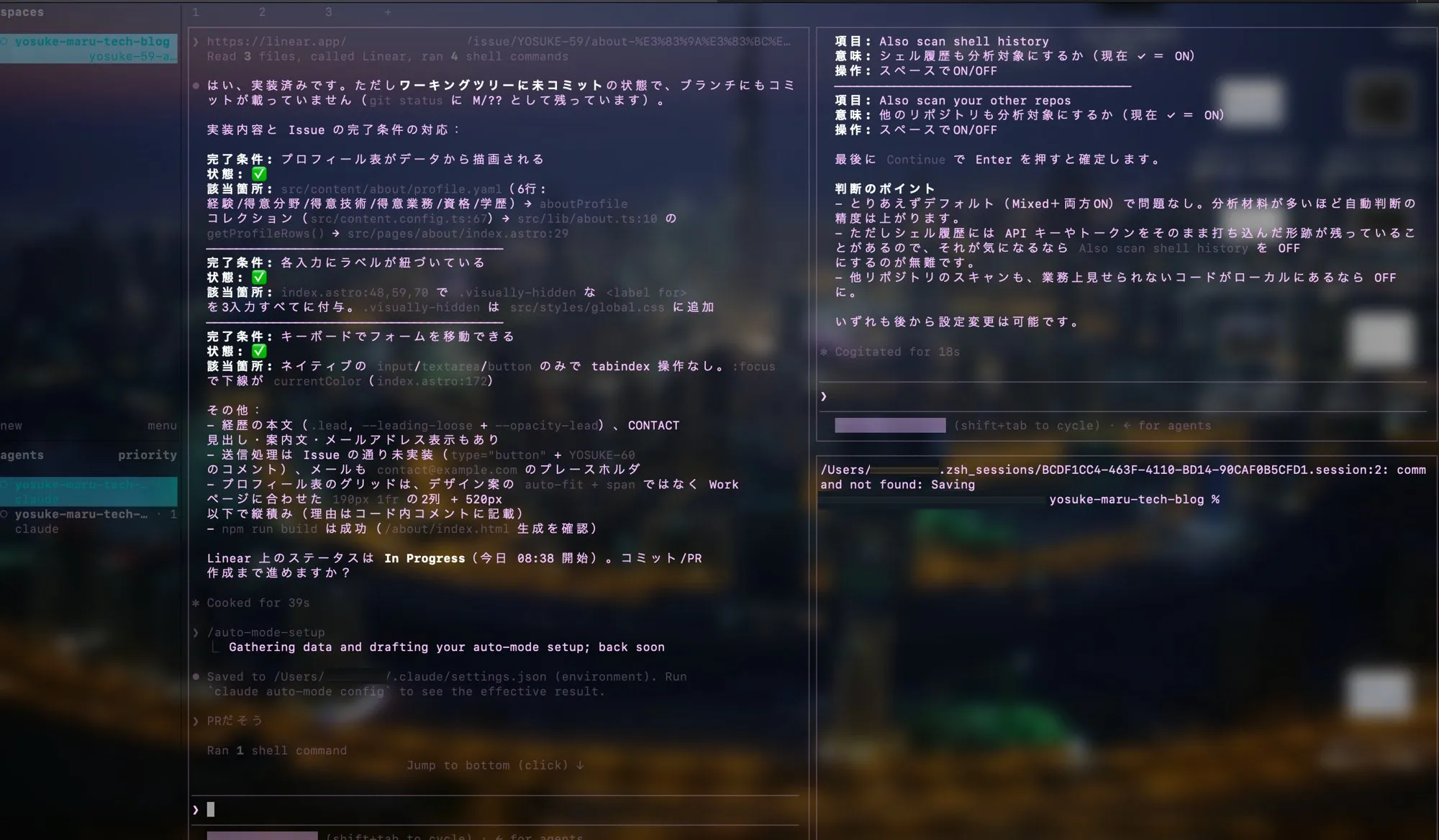
The screen is split into three panes.
| Position | Contents |
|---|---|
| Left | An AI session that implemented the About page from a Linear issue and is reporting progress against each of the issue’s acceptance criteria |
| Top right | Another AI session, answering questions about Claude Code’s auto mode settings |
| Bottom right | A regular terminal (zsh) |
The sidebar on the far left lists workspaces and agents. It shows which sessions are working and which are waiting for input, so I don’t have to check each pane one by one.
The “1 2 3 +” at the top left are tabs. You can add one with prefix then c, or from the command line with a working directory, as in herdr tab create --cwd <path>. With one tab per project, switching to another project doesn’t mean opening another window; everything stays on this screen.
Installing and basic controls
On a Mac it’s available through Homebrew.
# Mac
brew install herdr

# Linux and others
curl -fsSL https://herdr.dev/install.sh | sh
Run herdr in your project directory to start it. If a session already exists, it attaches to it.
herdrEvery action starts with the prefix key (Ctrl+b by default, same as tmux), followed by another key.
| Action | Keys |
|---|---|
| Split pane left/right | prefix → v |
| Split pane top/bottom | prefix → - |
| Move between panes | prefix → h/j/k/l |
| New tab | prefix → c |
| Jump to tab 1–9 | prefix → 1..9 |
| New workspace | prefix → Shift+n |
| Switch workspace | prefix → w |
| Detach (leave it running) | prefix → q |
| Show all keys | prefix → ? |
Start claude or codex in a pane as usual, and herdr picks up the agent’s state on its own. To make Claude Code’s state detection more accurate, install the integration hook.
herdr integration install claudeSubcommands I use often:
| Command | What it does |
|---|---|
herdr session list / herdr session attach <name> | List and attach to sessions |
herdr status | Check client and server status |
herdr server stop | Stop the server (running agents stop too) |
herdr update | Update to the latest version |
herdr --remote <ssh-target> | Attach to herdr on a remote machine over SSH |
What I found inconvenient
It’s handy, but compared with the Claude Code desktop app, a few things got in the way.
Code changes are hard to read
Following diffs inside a terminal is much harder than in the desktop app. When I want to properly check what changed, I end up opening VS Code or creating a PR and reading the diff on GitHub. The whole point is doing everything on one screen, yet reviewing still takes me somewhere else.
No way to fork a conversation
herdr itself has no feature for forking a conversation, that is, branching it off from a point partway through. I checked the docs and the source code, and the only place “fork” appears is in the hook settings herdr uses to notice when Claude Code itself forks.
That said, each pane runs plain Claude Code, so Claude Code’s own features still work.
| Goal | How |
|---|---|
| Branch the current conversation and switch into the branch | /branch |
| Copy the current conversation into a separate background session | /fork |
| Resume a past session as a new branch | claude --resume <session-id> --fork-session |
A copy made with /fork becomes a Claude Code background session, not a new herdr pane. If you want the branched conversation side by side in herdr, open a new pane and resume it with --fork-session.
No pinning
There’s also no way to pin a session or workspace you use often to the top. As agents pile up, you end up hunting for the one you want in the sidebar. The closest thing is the Goto picker (prefix → g), which lets you filter by name, branch or state (blocked, working and so on) and jump straight there.
When it fits
Putting it together, herdr suits work where the AI does most of the typing and you don’t need to read diffs closely.
I recommend it for vibe coding on personal projects when the change is visual only and almost certain not to introduce bugs. For something like tweaking the design of this blog’s pages, I can hand separate fixes to several sessions, watch their status in the sidebar, and check each result on screen as it finishes.
For work code, or anything that changes logic, you need to read the diffs carefully. In that case the desktop app, VS Code or a PR review screen is easier.
Wrapping up
With herdr, I can put several AI sessions and a regular terminal on one screen, switch projects with tabs, and get everything done without leaving the terminal. The sidebar shows each agent’s state, so running them in parallel doesn’t get confusing.
On the other hand, diffs are hard to read, and there’s no conversation forking or pinning. It works well for vibe coding visual changes on personal projects; for work where you need to check diffs carefully, it’s better paired with other tools.